Google Analytics for Social Media: How To Track Performance
How to track social media ROI using GA4, UTMs and cross-channel reporting.

Contents
What’s Different About GA4?How To View Your Social Media Performance in Google Analytics (GA4)Why UTM Parameters Are ImportantSetting Up Key Events in GA4Tracking Social With Google Tag ManagerHow To Use Google Analytics and Dash Social To Maximize Your Social Media StrategyGoogle Analytics for Social Media FAQs
More and more, social media is becoming a critical tool in selling products and services. Brands everywhere are investing in these channels, and the opportunities continue to grow. However, proving cross-channel social marketing ROI and how it drives sales continues to be a consistent pain point for marketing teams everywhere. Without measuring the impact of your team’s work, you can’t prove the value you’re driving for your organization or make data-informed decisions on where to focus your social efforts.
That’s where Google Analytics 4 (GA4) comes in. GA4 allows marketers to track how social traffic contributes to engagement, conversions and revenue, across the entire customer journey.
Key Takeaways:
- GA4 uses an event-based model to measure social traffic, engagement and revenue.
- Properly structured UTM parameters are critical for accurate cross-channel tracking.
- GA4’s data-driven attribution model helps measure social’s role beyond last-click.
- Custom channel groupings ensure paid and organic social traffic are categorized correctly.
- Connecting GA4 with Dash Social centralizes campaign, content and revenue reporting.
What’s Different About GA4?
Google Analytics 4 is built around:
Event-Based Tracking
Every interaction, page views, purchases, scrolls, clicks, is tracked as an event. Marketers can designate important actions as Key Events (formerly conversions).
Data-Driven Attribution
GA4 uses machine learning to assign credit across touch points, helping marketers understand how social contributes throughout the funnel. Not just at the final click.
Privacy-Safe and Modeled Measurement
With increasing privacy regulations and cookie restrictions, GA4 uses modeled data and consent-based tracking to estimate conversions when full data isn’t available.
Cross-Platform Measurement
GA4 can collect data from websites and apps in one property, giving a more holistic view of customer journeys.
How To View Your Social Media Performance in Google Analytics (GA4)
Once UTM tracking is properly implemented, GA4 automatically attributes incoming traffic based on source, medium and campaign. To analyze social performance:
1. Navigate to Traffic Acquisition
Go to: Reports > Acquisition > Traffic Acquisition
This report shows session-level performance.
From here, adjust the primary dimension to:
- Session source/medium.
- Session campaign.
- Session default channel group.
- Or a Custom Channel Group (recommended).
This allows you to evaluate traffic, engagement and revenue tied to specific social campaigns.
2. Use Attribution Reports
To understand how social contributes across the funnel, navigate to: Advertising > Attribution
Here you can:
- Compare attribution models.
- View assisted conversions.
- Analyze conversion paths.
- Evaluate how social supports paid and email efforts.
Because GA4 defaults to data-driven attribution, this report is critical for understanding full-funnel impact.
3. Explore Conversion Paths
For deeper insight, go to: Explore > Path Exploration
This allows you to see how users move from:
Social → Website → Product → Checkout → Purchase
This is especially valuable for cross-channel reporting.

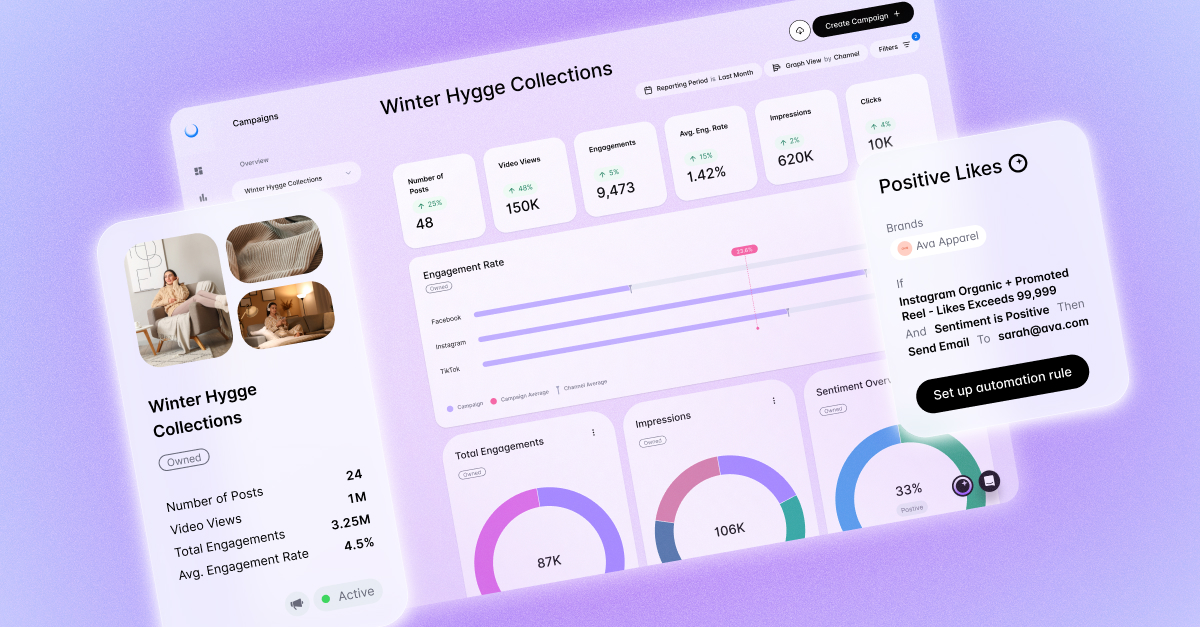
Custom analytics and reporting made simple.
Uncover at-a-glance stats, your top performing creative and more.
Discover Analytics and Custom ReportingWhy UTM Parameters Are Important
UTMs (Urchin Tracking Modules) are parameters added to URLs that tell GA4 where traffic originated. These codes are added to the end of URLs to help give a better idea of how traffic is getting to your website, giving you a clearer understanding of your marketing performance.
Adding UTMs to the end of your URLs when posting on social helps to show how the same post drove traffic across different platforms. For example, if you posted the same content on Instagram, Pinterest, Tikok, and Facebook using channel-specific UTMs, using Google Analytics lets you easily tell which platform drove the most traffic, helping you make better-informed decisions on where to focus your efforts, helping perfect your brand’s digital strategy.
Without UTMs, social traffic can:
- Be miscategorized.
- Blend organic and paid traffic.
- Distort ROI reporting.
How To Build UTM Parameters
You can add five standard UTM parameters to the end of your URL to get a clearer picture of your social performance. You don’t need to add five, but the more you add, the more granular you can be in your analysis. A standard URL with UTMs can look like this:
https://example-product-url.com?utm_campaign=likeshopme&utm_medium=social&utm_source=instagram&utm_content=instagram.com/p/example-post-url
‘Source’ is where the traffic originated from. This could be sources like Instagram, Facebook, Google, or an email list.
Ex, utm_source=instagram, utm_source=google
Medium is the general area driving traffic.
Ex, utm_medium=social, utm_medium=email, utm_medium=paid_social
Campaign lets you track the performance of a specific campaign you’re running. You can use this to differentiate from various campaigns you’re running simultaneously, new product launches, and more.
Ex, utm_campaign=spring-sale, product-launch
Content is used to help differentiate if you have multiple links using the same URL or the URL to the social post, so you know precisely which post the traffic is coming from.
Ex, utm_content=<instagram_post_URL>, utm_content=homebutton
Term is generally used for paid search ads and can help you see which keywords a user got to your site from. Term can also be used for key phrases.
Ex, utm_term=how_to_write_a_blog
Building UTMs can seem daunting at first. However, there are tools you can use to assist. When posting using Dash Social's scheduler, we’ll automatically add UTMs to your posts, removing stress.
If you don’t use Dash Social, Google Analytics has an easy Campaign URL builder that will help you easily generate URLs.

Benefits of Using UTMs
If UTMs are new to your brand, you may be wondering why they're so important. Here are a couple of reasons UTMs are beneficial for brands while using Google Analytics for social media.
- Measure social media results. Proving ROI has been a struggle for marketers. UTMs make that easier, especially coupled with cross-channel tools like Dash Social. This helps communicate to key stakeholders like your managers and customers what is driving traffic to your website and sales. By simply adding UTM parameters to social media links, you can easily measure and see the impact of your social media efforts.
- Drive strategic decisions. Social media is constantly changing, and Social Media Managers are in the thick of that change daily. Whether it's a new form of content or new channels, testing, measuring, and adjusting your strategy is an ongoing part of the job. Using UTMs to track what content is resonating with your audiences and driving results is critical to shifting your strategy and focusing on the channels and content types that deliver results. This also helps explain your strategy change to your leadership or shifts in budget allocation.
- Connect social to revenue. In addition to understanding what is driving traffic to your website, using UTMs can add additional value by connecting social media efforts to transactions on your website. This connects exact dollar value with the various social media campaigns you’re working on, helps with reporting the ROI on social media, and ultimately helps prove why social media is such an essential part of marketing.
UTM Best Practices
- Use lowercase consistently.
- Avoid spaces (use hyphens).
- Maintain standardized naming conventions.
- Separate paid and organic traffic clearly.
- Document your UTM structure in a shared guide.
This prevents fragmented reporting in GA4.
Setting Up Key Events in GA4
Because GA4 is event-based, marketers must define which events represent business outcomes.
To create a Key Event:
- Go to Admin
- Select Events
- Create or modify an event
- Mark it as a Key Event
Common social-related Key Events:
- purchase
- generate_lead
- add_to_cart
- sign_up
- download
Once configured, these events will appear in attribution and acquisition reports.
Tracking Social With Google Tag Manager
Google Tag Manager (GTM) simplifies event deployment without requiring constant developer support. GTM enables you to add tags to your website straight from Tag Manager. Tags are snippets of code that integrate analytics and other marketing supports to your website to collect more meaningful information about site usage.
With GTM, you can:
- Add tracking tags.
- Define triggers.
- Configure custom events.
- Validate tracking before publishing.
GTM is especially useful for:
- Button click tracking.
- Scroll depth tracking.
- Embedded video engagement.
- Social share tracking.

How To Use Google Analytics and Dash Social To Maximize Your Social Media Strategy
You can understand how your social media channels drive social commerce results and ROI by using UTMs and connecting your Google Analytics to Dash Social's cross-channel campaigns tool. Tying together the utm_campaigns to the visual content used in the campaign set up in Dash Social, brands can see the specific source/mediums that are associated with each campaign to compare what is driving the most traffic and revenue.
Step 1: When scheduling through Dash Social, default UTMs will automatically apply for you. If you'd like to customize these further to align with your social campaigns, simply copy-paste links with UTMs when scheduling your content! (or reach out to your account manager to update the defaults).
Many brands use UTM builders or even a spreadsheet to customize their UTMs ahead of time.

Step 2: Login to your Google Analytics account through Dash Social, and select the GA4 account with your site traffic.

Step 3: Go to your Dash Social Campaign and select the campaign UTM to match, then view all your traffic and revenue data in one place!

Check out our Campaigns Interactive Demo to understand how to Use Google Analytics for social media and Dash Social to Maximize Your Cross-Channel Social Media Strategy.
Google Analytics for Social Media FAQs
Can Google Analytics track TikTok?
Yes, Google Analytics can track TikTok. Be sure to adjust the source in your UTM to reflect TikTok.
Can Google Analytics track Instagram?
Yes, Google Analytics can track Instagram. Be sure to adjust the source in your UTM to reflect Instagram.
Can Google Analytics track Facebook?
Yes, Google Analytics can track Facebook. Be sure to adjust the source in your UTM to reflect Facebook.
Can Google Analytics track Twitter?
Yes, Google Analytics can track Twitter. Be sure to adjust the source in your UTM to reflect Twitter.
Can Google Analytics track YouTube?
Yes, Google Analytics can track YouTube. Be sure to adjust the source in your UTM to reflect YouTube.


.jpg)